How to Copy Someone Crosshair Code Valorant: The Complete Step-by-Step Guide
To clone a reticle in Valorant mid-match, spectate a teammate and type /cc into chat to save it instantly. Alternatively, import pro alphanumeric codes via Settings > Crosshair using the downward-arrow import button. Always keep profile slots open to prevent copy errors.
Precision gunplay in tactical shooters comes down to micro-adjustments, crosshair placement, and visual comfort. In Riot Games’ flagship shooter, your crosshair serves as your primary anchor for landing crisp first-bullet headshots. Whether you are spectating a top-fragging teammate hitting impossible one-taps or watching a VCT professional dominate an international stage, finding the right reticle design can instantly improve your aim confidence.
Fortunately, you no longer have to manually fiddle with individual sliders, inner line opacities, firing errors, and center dot thicknesses to replicate a reticle you admire. Riot Games introduced built-in cloning mechanics and alphanumeric profile imports that let you duplicate any player’s setup in seconds.
If you are wondering how to copy someone crosshair code Valorant players use—both live inside an active match and through external profile codes—this comprehensive guide covers every method, troubleshooting tips, and management strategies to upgrade your targeting settings effortlessly.
Why Copying Pro Crosshairs Matters in Valorant
Your reticle does not change weapon spread or recoil mechanics, but it dramatically impacts visual clarity, focus, and target acquisition speed.
A crosshair that is too large or features dynamic movement errors can obscure enemy heads at long ranges (such as Breeze’s A-site or Ascent’s mid courtyard). Conversely, an ultra-thin crosshair without outlines might get lost against bright backgrounds or utility effects like Viper’s poison cloud, Phoenix’s wall, or Brimstone’s incendiary.
When you learn how to copy someone crosshair code Valorant settings, you skip hours of trial and error. You gain immediate access to battle-tested reticles optimized by radiant players for specific monitors, native resolutions, and color-blind modes.
Method 1: How to Copy Someone’s Crosshair In-Game While Spectating
The fastest and most direct way to grab a teammate’s crosshair occurs in the middle of a live match. If a teammate is clutching rounds with exceptional accuracy and you want to try their reticle immediately, you can clone it straight into your account with a simple chat command.
Step-by-Step In-Game Spectate Cloning
- Wait Until You Are Eliminated: You must be actively spectating another player. You cannot copy the reticle of an enemy player or someone on your team while your own agent is still alive.
- Switch Your Spectator Camera to the Desired Player: Cycle through your surviving teammates using your primary fire button (left-click) until your camera locks onto the specific player whose crosshair you want to steal.
- Open the In-Game Chat Console: Press your chat key (default is Enter for all-chat or team chat).
- Type the Copy Command: Enter either of the following commands into the chat bar:
/crosshair copy/cc
- Press Enter: Once submitted, a brief system notification appears in the chat box confirming that the crosshair profile has been copied successfully.
- Apply the New Crosshair:
- Open the game menu by pressing Esc.
- Head over to the Settings menu and click on the Crosshair tab.
- In the Crosshair Profile dropdown menu, you will see a newly generated profile containing the copied settings.
- Select it, and your agent will use this exact reticle for the remainder of the match.
Crucial Rule: The in-game
/cccommand will only work if you have an open crosshair profile slot. Valorant caps the maximum number of saved crosshair profiles per account (up to 15 profiles). If your profile list is completely full, the command will fail silently or display an error indicating that no profile space is available. Make sure to delete obsolete profiles to keep a few slots open.
Method 2: How to Import a Crosshair Code from External Sources
Often, you will find an exceptional crosshair outside of your matches—whether from a twitch stream, a YouTube highlight montage, a tracker database, or a friend sharing their string over Discord.
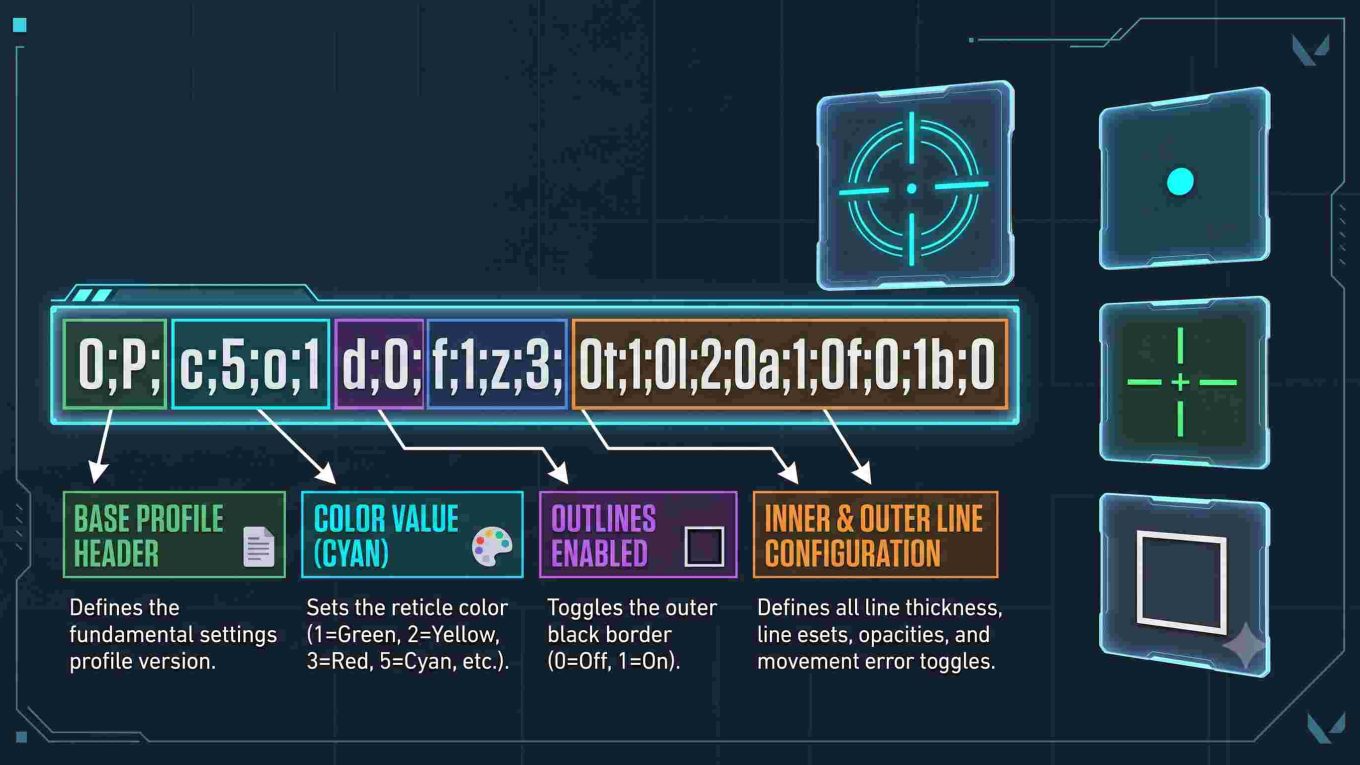
Valorant uses compressed, alphanumeric strings that store every single slider parameter—including color codes, opacity values, outline thicknesses, and error toggles—in a single compact code.
Step-by-Step Profile Code Import
- Copy the Target Crosshair Code: Highlight the alphanumeric string provided by the creator or site and copy it to your clipboard (press Ctrl + C).
- Example string:
0;P;c;5;o;1;d;1;z;3;f;0;0t;1;0l;2;0o;2;0a;1;0f;0;1b;0
- Example string:
- Launch Valorant and Open Settings: From the main dashboard or during an unrated custom game, click the Gear Icon in the top-right corner of the screen, or hit Esc, then select Settings.
- Navigate to the Crosshair Tab: Click the Crosshair header at the top of the interface. This will open your reticle preview and profile selector.
- Locate the Import Profile Button: Near the top preview window, next to the “Crosshair Profile” dropdown, look for the small icons. Locate the Import Profile Code icon (it looks like a small downward-facing arrow pointing into an open tray or bracket).
- Paste Your Code: Click the icon to bring up the text entry field. Press Ctrl + V to paste your copied alphanumeric code directly into the box.
- Click Import: Once submitted, the system verifies the string and generates a new crosshair profile labeled with a default number or timestamp.
- Rename and Save: Click the small edit/pencil icon next to the profile name to rename it (e.g., “TenZ Dot” or “Clean Cyan Box”) so you can easily switch between your favorite designs later.
How to Export and Share Your Own Crosshair Code
Learning the system goes both ways. When your teammates spectate your clutch and ask for your reticle, you can generate your own export code instantly without writing down individual numbers.
- Go to Settings > Crosshair.
- Select the specific crosshair profile you want to distribute from the dropdown list.
- Click the Export Profile Code button located right next to the import arrow (represented by an arrow pointing upward out of a box).
- Valorant will automatically copy your profile’s unique string directly to your computer’s clipboard.
- Paste (Ctrl + V) the code directly into game chat, Discord, or community forums for your teammates to import.
Troubleshooting Common Issues When Copying Crosshair Codes
If you run into roadblocks when trying to copy someone crosshair code Valorant settings, check for these common technical hitches:
1. The /cc Command Does Not Trigger in Game
- Full Profile Bank: As mentioned, your crosshair profile inventory has a hard limit. Go to Settings > Crosshair, open your profile list, select old tests you never use, and click the Trash Can Icon to free up memory slots.
- Typing in the Wrong Mode: Ensure your chat bar is active and that you type the exact slash command (
/ccor/crosshair copy) with no spaces before the forward slash. - Spectating the Wrong Target: The command only copies the crosshair of the player currently centered on your spectate camera. Make sure the HUD clearly shows you are viewing the intended teammate.
2. “Invalid Crosshair Code” Error Upon Import
- Incomplete Clipboard Copy: Crosshair strings begin with characters like
0;P;.... If you miss the starting character or leave off the final digits when highlighting the string from a website, the game engine will reject the syntax as corrupted. - Hidden Spaces or Formatting: Pasting rich text from certain websites can accidentally insert trailing white spaces or line breaks. Paste the code into a plain text editor (like Notepad) first to confirm it is a continuous single line of text before copying it into Valorant.
- Outdated Legacy Codes: While rare, major game balance patches that alter crosshair variables or add new accessibility options can occasionally invalidate extremely old beta strings.
Best Settings to Look for When Choosing a Copied Crosshair
When experimenting with imported crosshair codes, consider these core principles to maximize your in-game performance:
| Crosshair Element | Recommended Setting | Why It Matters |
| Color | Cyan, Green, or Yellow | These hues offer the highest contrast against the warm, earthen textures of maps like Bind, Haven, and Sunset. |
| Outlines | On (Opacity: 0.5 – 1, Thickness: 1) | Outlines keep your lines visible when aiming into glowing agent abilities, smokes, or skyboxes. |
| Center Dot | Optional (Off for lines; On for dot-only) | A 2-pixel center dot helps pinpoint first-shot accuracy, but combining thick inner lines with a large dot creates unnecessary clutter. |
| Movement / Firing Error | Off | Dynamic crosshair expansion distracts from steady recoil control and crosshair placement at higher competitive ranks. |
Summary Checklist
To master crosshair sharing in Valorant:
- Use
/ccwhile spectating a dead teammate to clone their active reticle instantly. - Keep 2 to 3 crosshair profile slots empty so in-game copying never fails.
- Use the Import Profile (down-arrow) icon to paste external strings from streams or tracker sites.
- Use the Export Profile (up-arrow) icon to share your personal code with your squad.
Mastering these quick crosshair tools ensures you spend less time tweaking menu options and more time focusing on game sense, utility timing, and hitting your headshots.
Frequently Asked Questions (FAQ): Valorant Crosshairs
1. How do you copy a teammate’s crosshair while spectating in Valorant?
To copy a teammate’s reticle in real time, you must be eliminated and actively viewing their point of view. Press Enter to open the in-game chat box, type /cc or /crosshair copy, and press Enter. A green confirmation notice will appear in chat, and the reticle will automatically be saved as a new profile inside your Settings > Crosshair menu.
2. Why is the /cc copy crosshair command not working in my match?
The /cc command almost always fails because your crosshair profile inventory is completely full. Valorant caps saved profiles at 10 to 15 slots; if there are no open slots, the command cannot generate a new profile. To resolve this:
- Open Settings > Crosshair.
- Open the Crosshair Profile dropdown.
- Select old or unused reticle profiles and click the Trash Can icon to free up space.
- Verify you are eliminated, spectating a live player, and typing the slash command without leading spaces.
3. How do you import an alphanumeric crosshair code in Valorant?
Copy the target alphanumeric code (starting with 0;P;...) to your clipboard using Ctrl + C. Launch Valorant, open Settings, and navigate to the Crosshair tab. Beside the “Crosshair Profile” dropdown, click the Import Profile Code button (the small downward-pointing arrow icon). Paste your code into the prompt using Ctrl + V, then click Import to immediately save the configuration.
4. Why does Valorant show an “Invalid Crosshair Code” error upon import?
This error typically triggers due to formatting or truncation issues:
- Missing Prefix or Suffix: Crosshair strings require specific syntactical structures (like
0;P;). Missing the opening characters or trailing digits will cause the game engine to reject the code. - Accidental Whitespace or Line Breaks: Copying from web browsers can inadvertently include trailing spaces or hidden rich-text formatting. Paste the code into a plain-text editor (such as Notepad) first to confirm it is a single continuous line before importing.
- Obsolete Beta Codes: Very old beta-era profiles may occasionally fail if subsequent game patches altered or deprecated specific line variables.
5. How can you export your own Valorant crosshair code to share with friends?
Open Settings > Crosshair and select the profile you want to distribute from the dropdown list. Click the Export Profile Code icon (the upward-pointing arrow out of an open tray located right next to the import button). Valorant will automatically copy your crosshair’s alphanumeric string directly to your clipboard, allowing you to paste (Ctrl + V) it directly into game chat, Discord, or social media.